Getting Started with Dockhand: Modern Docker Management for Everyone

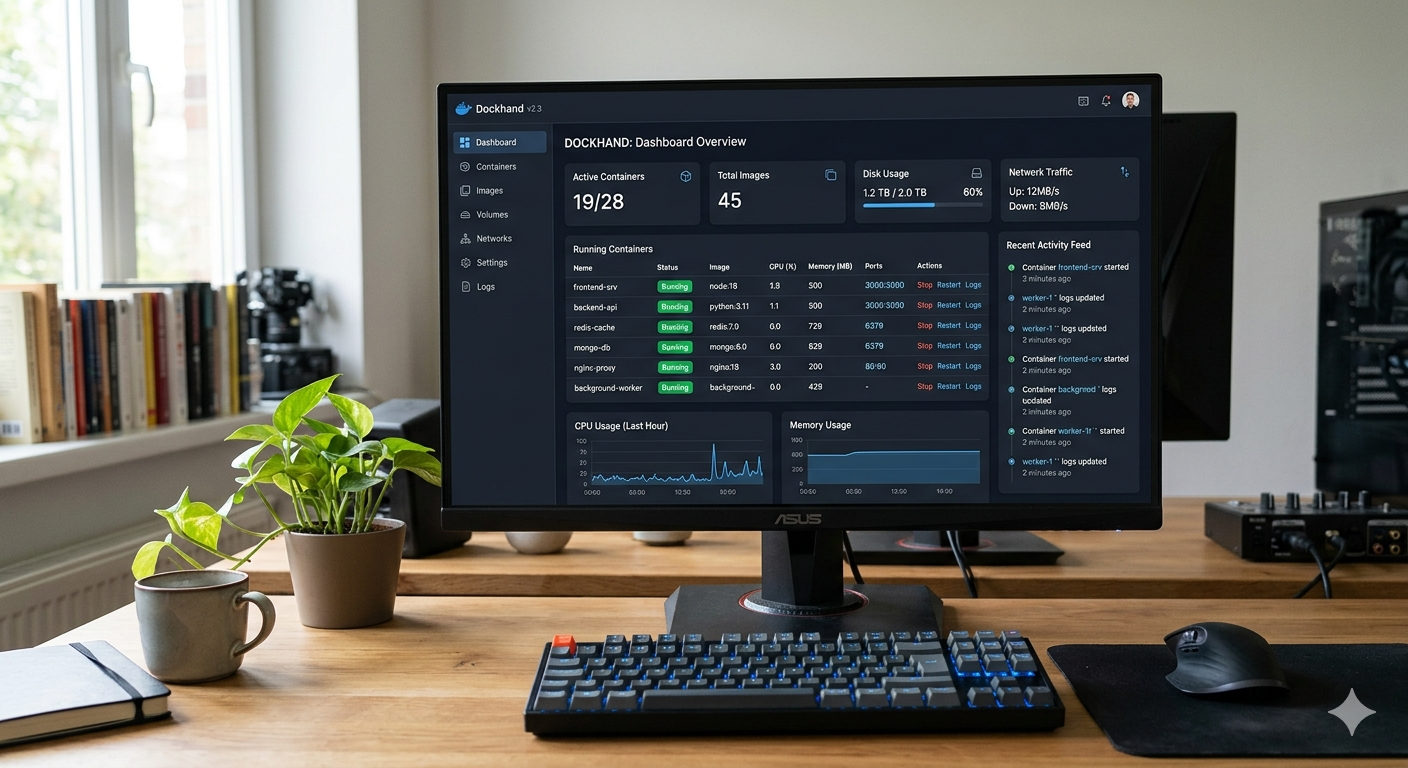
If you've been juggling Docker containers through raw CLI commands or wrestling with heavyweight management tools, Dockhand is the breath of fresh air your homelab deserves. It's a powerful, intuitive Docker platform that's free for homelabs and scales all the way to enterprise — without the usual friction.
In this guide, we'll walk through installing Dockhand on Ubuntu 24.04, getting it running locally, and then extending it to manage remote Docker hosts using its companion agent, Hawser.
Prerequisites & Important Notes
This guide is written for Ubuntu 24.04 LTS, though it should work on any modern Debian-based Linux distro.
⚠️ Proxmox / VM Users — Read This First If you're running this inside a virtual machine (e.g., a Proxmox VM), you must set the CPU type tohostin your VM settings. Dockhand does not function correctly under the defaultKVM64CPU type. Head to your VM's Hardware → Processor settings and change the CPU type before proceeding.
You'll also need Docker and Docker Compose installed before continuing. If you haven't done that yet, follow the quick-install guide at docs.sudeepshrestha.com and come back here once that's done.
Installing Dockhand
With Docker up and running, you have two equally valid options — a one-liner docker run command, or a clean Docker Compose file. Pick whichever fits your workflow.
Option A — Docker Run
If you want to get up and running immediately, paste this into your terminal:
bash
docker run -d \
  --name dockhand \
  --restart unless-stopped \
  -p 3000:3000 \
  -v /var/run/docker.sock:/var/run/docker.sock \
  -v dockhand_data:/app/data \
  fnsys/dockhand:latest
Option B — Docker Compose (Recommended)
For a more maintainable setup — especially if you're already managing other services with Compose — create a docker-compose.yml with the following:
yaml
services:
  dockhand:
    image: fnsys/dockhand:latest
    container_name: dockhand
    restart: unless-stopped
    ports:
      - "3000:3000"
    volumes:
      - /var/run/docker.sock:/var/run/docker.sock
      - dockhand_data:/app/data

volumes:
  dockhand_data:
Then start it with:
bash
docker compose up -dOnce it's running, open your browser and navigate to http://localhost:3000. If you're accessing it from another machine on your network, replace localhost with your server's IP address.
Managing Remote Docker Hosts
One of Dockhand's standout features is the ability to manage Docker environments beyond your local machine. Whether you have multiple VMs, bare-metal servers, or cloud instances — you can bring them all under a single Dockhand dashboard.
The bridge between Dockhand and your remote hosts is a lightweight agent called Hawser. You install Hawser on each remote machine, then register it in Dockhand's settings.
Step 1 — Install Hawser on the Remote Host
SSH into your remote machine and run the following:
bash
docker run -d \
  --name hawser \
  -v /var/run/docker.sock:/var/run/docker.sock \
  -v hawser_stacks:/data/stacks \
  -p 2376:2376 \
  ghcr.io/finsys/hawser:latest
This pulls the Hawser image and starts the agent, exposing port 2376 which Dockhand uses to communicate with it.
💡 Firewall Tip: Make sure port2376is open on the remote host (sudo ufw allow 2376/tcpon Ubuntu). For production setups, consider restricting access by IP or placing Hawser behind a VPN.
Step 2 — Register the Remote Host in Dockhand
- Open your Dockhand dashboard at
http://localhost:3000 - Navigate to Settings → Environments
- Click Add Environment and enter the remote machine's IP address with port
2376 - Save the connection — Dockhand will verify the Hawser agent is reachable and add it to your dashboard
 Sudeep Shrestha
Wrapping Up
Once everything is wired up, Dockhand gives you a unified view across all your Docker environments — start, stop, and restart containers, inspect logs in real time, manage images and volumes, deploy stacks, and monitor resource usage, all from one clean interface.
For homelab operators managing a growing stack of self-hosted services, it's a serious quality-of-life upgrade. Give it a try and let me know what you think in the comments!