Basic Computer Networking Concepts Explained: A Beginner’s Guide


Networking is the foundation of modern computing. Without networking, your devices would live in isolation, unable to communicate, share files, or access the internet. If you’ve ever wondered how your computer finds Google, how Wi-Fi works, or why firewalls are important, this post is for you.
1. IP Address (Internet Protocol Address)
An IP address is the digital address of your device. Just like your house has a postal address, your computer or phone needs an IP address to send and receive data.
- IPv4: 32-bit format like
192.168.1.10. - IPv6: 128-bit format like
2001:db8::1(created to handle the shortage of IPv4 addresses).
Without an IP, your device wouldn’t know where to send or receive information.
There are two main types of IP addresses:
🔹 Private IP Address
- Used inside local networks (like your home or office).
- Assigned by your router, usually with DHCP.
- Cannot be accessed directly from the internet.
- Reserved ranges:
10.0.0.0 – 10.255.255.255172.16.0.0 – 172.31.255.255192.168.0.0 – 192.168.255.255
- Example: Your laptop might have
192.168.1.100at home.
🔹 Public IP Address
- Used on the internet and assigned by your ISP (Internet Service Provider).
- Every network connected to the internet needs at least one public IP.
- Can be IPv4 (like
203.0.113.45) or IPv6 (like2001:db8::1). - Your home router usually has one public IP, and all devices behind it share that address through NAT (Network Address Translation).
👉 Quick Example:
- Your phone (Private IP:
192.168.1.20) sends a request togoogle.com. - Your router translates it to your Public IP (
203.0.113.45). - Google responds to the Public IP, and your router delivers it back to your phone.
2. MAC Address (Media Access Control Address)
Every device with a network card has a unique, permanent hardware address called the MAC address.
- Format:
00:1A:2B:3C:4D:5E - Assigned by the manufacturer, and usually doesn’t change.
It’s mainly used within a local network to identify devices uniquely.
3. Subnet
A subnet divides a large network into smaller, manageable sections. This prevents congestion and improves performance.
For example:
- Network:
192.168.1.0/24 - Subnet allows splitting into groups like
192.168.1.0–127and192.168.1.128–255.
4. Gateway
The gateway is your door to the outside world. It connects your internal network to external networks. Typically, your router serves as the default gateway.
- Example: Your PC → Gateway → Internet.
5. DNS (Domain Name System)
DNS is like the phonebook of the internet. Humans prefer names (google.com), but computers only understand numbers (IP addresses). DNS translates names into IPs behind the scenes. Without DNS, you’d need to remember 142.250.72.46 instead of just typing google.com.
 Sudeep Shrestha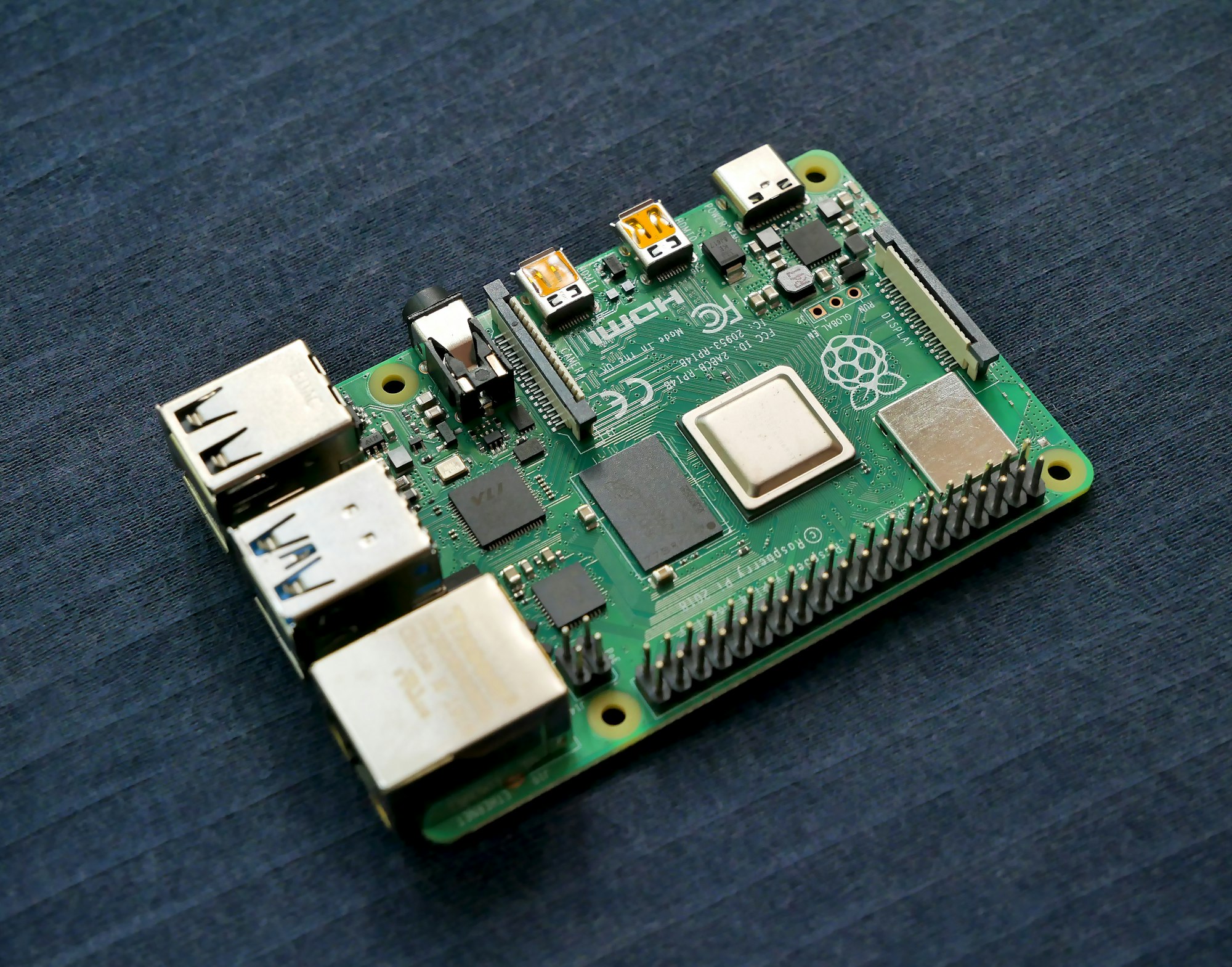
6. DHCP (Dynamic Host Configuration Protocol)
DHCP automatically assigns IP addresses to devices when they join a network. Instead of manually configuring IPs, DHCP ensures each device gets one dynamically and avoids conflicts.
- Example: Your Wi-Fi router is usually a DHCP server.
7. Server

A server is a computer designed to provide services to other devices. It can host websites, store files, or run applications.
- Examples:
- Web server → hosts websites.
- File server → stores and shares documents.
- DNS server → translates names to IPs.
 Sudeep Shrestha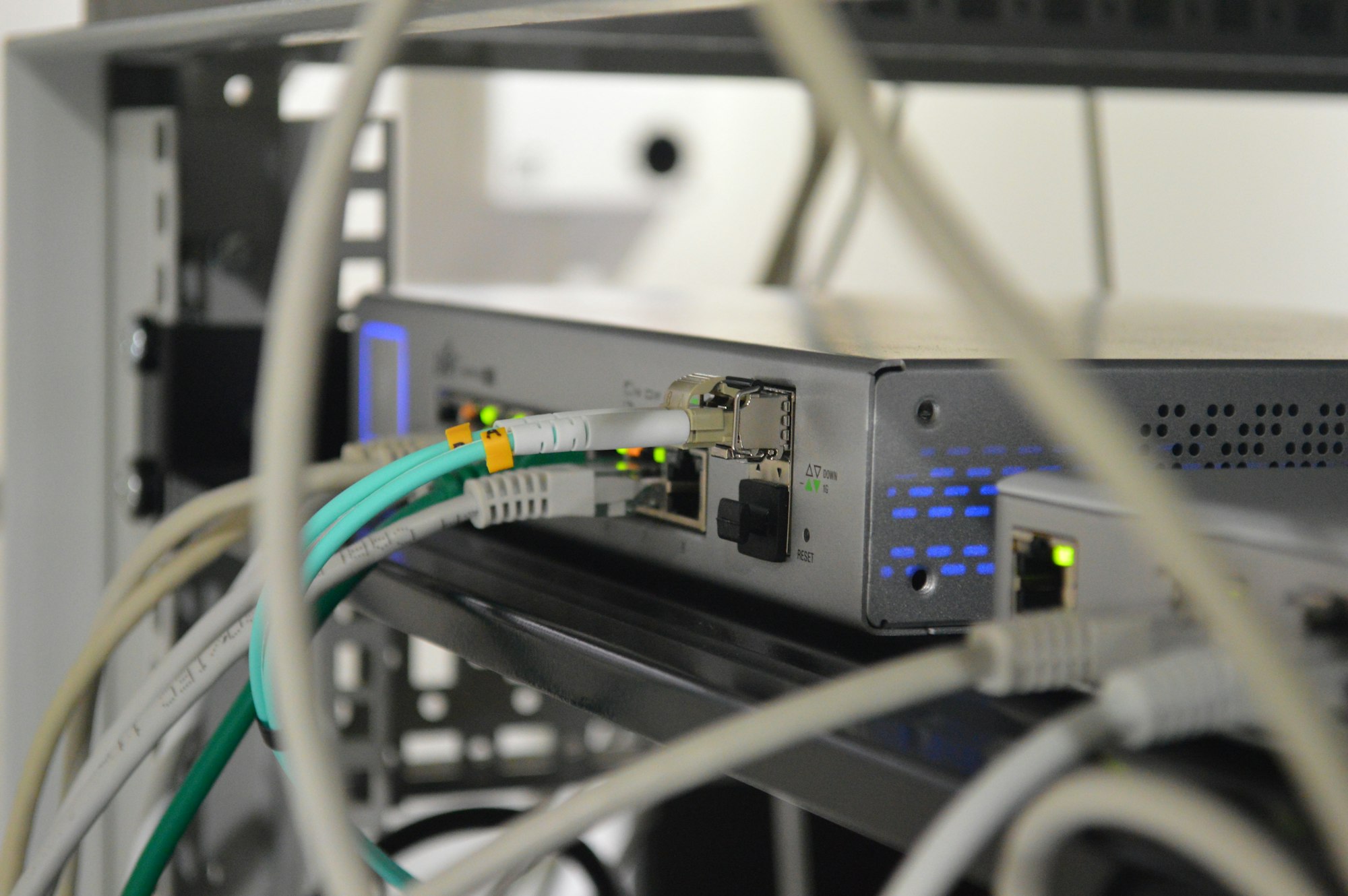
8. Client
A client is the device (like your laptop or smartphone) that requests services from a server. For example, when you open a browser and type google.com, your browser is the client asking Google’s server for data.
9. Router

Routers connect different networks and determine the best path for your data to travel.
- Home router connects your devices to the internet.
- Enterprise routers connect multiple offices across cities or countries.
10. Switch

A switch connects multiple devices within a local network (LAN). It ensures data goes only to the intended device instead of broadcasting to all. This improves efficiency.
- Example: Office switches connect dozens of computers to a central network.
11. Hub
A hub is like a basic switch but less intelligent. It sends incoming data to every device connected, which wastes bandwidth and poses security risks. That’s why modern networks use switches instead.
12. Firewall
A firewall protects your network by filtering traffic based on rules. It blocks unauthorized access and prevents malicious traffic.
- Software firewalls → run on computers.
- Hardware firewalls → standalone devices between your router and ISP.
13. NAT (Network Address Translation)
NAT allows many devices to share one public IP address by translating private IPs (inside your home) into a single public IP (seen by the internet). Without NAT, every device in your home would need its own unique public IP.
14. LAN (Local Area Network)
LAN is a private network covering a small area like your home, office, or school. Devices in a LAN can communicate directly without the internet.
15. WAN (Wide Area Network)
WAN spans a much larger area than LAN, often connecting multiple LANs together. The internet itself is the largest WAN.
16. VPN (Virtual Private Network)
A VPN creates a secure, encrypted tunnel between your device and another network. This hides your traffic from snooping and allows remote access to networks as if you were physically present there.
 Sudeep Shrestha
17. Port
Think of ports as “doors” that data enters or exits through. Each service uses a specific port.
- Port 80 → HTTP (web traffic).
- Port 443 → HTTPS (secure web).
- Port 25 → Email (SMTP).
18. TCP (Transmission Control Protocol)
TCP ensures reliable communication. It checks that every packet arrives in the correct order. If something is missing, TCP resends it.
- Example: Loading a website or downloading a file.
19. UDP (User Datagram Protocol)
UDP is faster but doesn’t guarantee delivery or order. It’s useful when speed matters more than reliability.
- Example: Video streaming, online gaming, or VoIP calls.
20. Packet
Data doesn’t travel all at once. It’s broken into small chunks called packets. Each packet contains source, destination, and payload. At the other end, packets are reassembled into the original data.
21. Bandwidth
Bandwidth is the maximum amount of data that can pass through a connection per second. Think of it as the width of a highway—more lanes mean more cars can pass.
22. Latency
Latency measures the time it takes for data to travel from source to destination. High latency causes lag. Example: satellite internet has high latency compared to fiber.
23. Throughput

Throughput is the actual performance—the real speed of data transfer you experience. Even if you have 100 Mbps bandwidth, interference or congestion might reduce throughput.
24. Topology
Topology refers to how devices are arranged in a network:
- Star → All devices connect to a central switch.
- Bus → Devices share one cable.
- Mesh → Every device connects to every other device.
25. Ping
Ping tests connectivity by sending a small signal (ICMP echo) to another device and measuring how long it takes to return.
- Example:
ping google.comshows if Google is reachable and how fast the response is.
26. Proxy Server
A proxy acts as a middleman between client and server. It can:
- Hide your IP address.
- Cache frequently visited websites.
- Filter or block content.
 Sudeep Shrestha
27. Load Balancer
A load balancer distributes incoming traffic across multiple servers so no single server gets overwhelmed. This improves reliability and speed for users.
28. SSID (Service Set Identifier)
The SSID is simply the name of your Wi-Fi network (e.g., “Home_WiFi”). When you search for available networks, those names you see are SSIDs.
29. Wireless Access Point (WAP)
A WAP provides wireless connectivity to devices. It connects to your router or switch to extend Wi-Fi coverage. Large offices often use multiple access points.
30. OSI Model (Open Systems Interconnection)
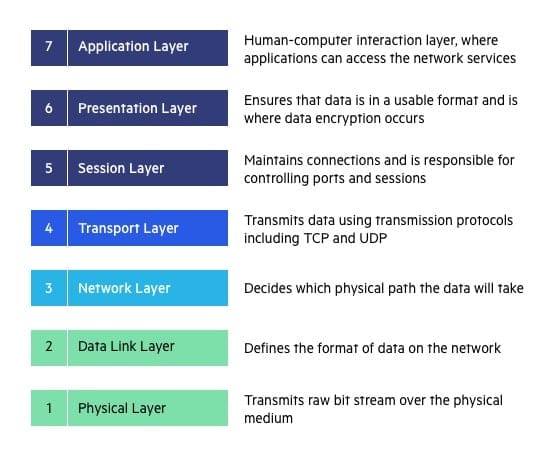
The OSI model explains how data travels across a network in 7 layers:
- Physical (cables, hardware)
- Data Link (MAC addresses, Ethernet)
- Network (IP addresses, routing)
- Transport (TCP/UDP)
- Session (communication sessions)
- Presentation (data format, encryption)
- Application (what you see—web, email, apps)
Understanding the OSI model helps troubleshoot networking issues by knowing where problems might occur.

Most people don’t realize that the small home router sitting on their desk is actually an all-in-one networking device. Instead of just being a “router,” it combines the roles of multiple networking components into one box and serves all the functions of Router, Gateway, Switch, Firewall and WAP ( Wireless Access Point )
Final Thoughts
Networking may seem complicated, but each element is like a building block. Once you understand IP addresses, DNS, DHCP, routers, switches, firewalls, and protocols like TCP/UDP, you’ll have a solid foundation to explore advanced topics like cloud networking, cybersecurity, and homelabs.
Keep this guide handy—it’s a roadmap to networking basics. The next time your internet goes down or you’re setting up a homelab, you’ll know exactly what each part does.
Thank you so much for taking the time to read my blog! Your support and engagement truly mean a lot and inspire me to keep creating and sharing more valuable content. If you enjoyed this post, I’d love to hear your thoughts—feel free to leave a comment in the box below and join the conversation. And if you’d like to stay updated with the latest posts, tips, and insights, don’t forget to subscribe to my newsletter. By joining, you’ll be the first to know when new content is published, so you never miss an update.
Home, away, and third kits each tell a different part of a club story as supporters use shirts to connect club identity with everyday style. Conversations about supporter identity through shirts can be just as important as the badge when fans compare different kits. For supporters studying famous shirt designs, Brazil national team shirt for fans is a useful phrase within the wider story of football shirts. The wider kit culture connects practical details with the emotional side of following a team.