Learn Basic Linux Using Ubuntu 24.04 LTS and Setting Up a Practice Server


Linux is one of the most powerful and widely used operating systems in the world. Whether you’re looking to start a career in IT, manage your own home lab, or simply understand how servers work, learning Linux is an essential skill. In this guide, we’ll walk through setting up Ubuntu 24.04 LTS as a server and practicing basic Linux command-line skills.
Why Ubuntu 24.04 LTS?
Ubuntu is one of the most beginner-friendly Linux distributions. The LTS (Long-Term Support) version is stable, well-documented, and supported for five years, making it an ideal choice for learners. Ubuntu 24.04 LTS is the latest release, offering up-to-date features while still being reliable and its free to use for everyone.
Setting Up Your Practice Server
You don’t need expensive hardware to learn Linux. Here are a few ways to set up your Ubuntu server:
1. Virtual Machine (Recommended for Beginners)
- Install Hypervisor like Virtual-box or Proxmox on your computer.
- Download Ubuntu 24.04 LTS Server ISO from the official website.
- Create a new VM, allocate at least 2GB RAM and 20GB disk space, then boot from the ISO and install Ubuntu.
 Sudeep Shrestha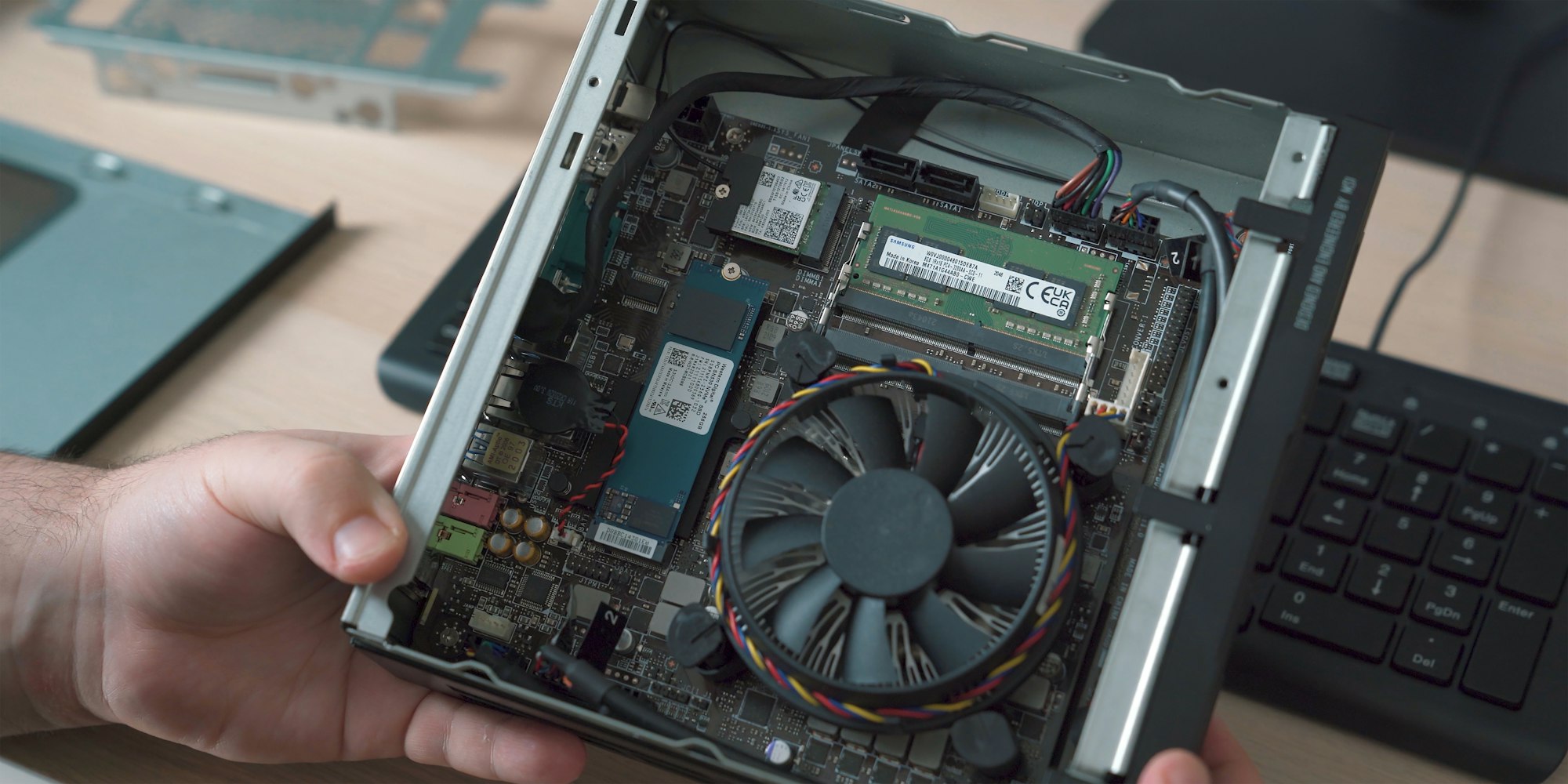
2. Bare Metal (Dedicated Machine)
If you have an old PC or laptop, you can install Ubuntu Server directly on it. or Raspberry pi (SBC) can be affordable option to learn linux. Which i started my linux journey playing with it on some small projects.
3. Cloud Instance (Optional)
Platforms like AWS, DigitalOcean, Oracle Cloud or Linode let you spin up an Ubuntu server quickly. Great for remote practice, but may cost a small fee. Usually most Cloud Providers provides Free Tier which is enough compute resource to learn linux.
First Steps After Installation
Once your server is ready, connect your server via SSH or direct connect using keyboard, log in with your username and password. You’ll be greeted by the command line. Don’t worry—it may look intimidating at first, but it’s where all the learning begins.
Basic Linux Commands to Learn
Here are essential commands every beginner should practice:
1. Navigation
pwd # Print working directory
ls # List files
ls -l # List with details
cd /path # Change directory
2. File Operations
touch file.txt # Create a new empty file
nano file.txt # Edit file in nano editor
cat file.txt # View file content
cp file.txt backup/ # Copy file
mv file.txt docs/ # Move file
rm file.txt # Delete file
3. Directories
mkdir myfolder # Create directory
rmdir myfolder # Remove empty directory
rm -r myfolder # Remove directory with files
4. System Information
uname -a # Show system information
hostnamectl # Show hostname & OS details
df -h # Disk usage
free -h # Memory usage
uptime # How long the server has been running
5. User Management
whoami # Show current user
id # Show user ID
sudo adduser testuser # Create new user
sudo passwd testuser # Set password
6. Package Management (APT)
sudo apt update # Update package list
sudo apt upgrade # Upgrade installed packages
sudo apt install htop # Install a package
sudo apt remove htop # Remove a package
7. Process Management
ps aux # Show running processes
top # Monitor system processes
htop # Better process viewer (if installed)
kill PID # Kill a process by ID
8. Networking
ip a # Show network interfaces
ping google.com # Test network connection
curl ifconfig.me # Show public IP address
Understanding File Permissions in Linux
In Linux, everything is a file — your documents, programs, even devices like hard drives. To keep things secure, Linux uses a permission system to define who can read, write, or execute each file.
Every file and folder in Linux has permissions that control who can read (r), write (w), or execute (x) it.
Check permissions with:
ls -l
Example:
-rw-r--r-- 1 sudeep sudeep 1200 Aug 23 notes.txt
Breakdown:
- First
-→ file type (-= file,d= directory) rw-→ Owner (read + write)r--→ Group (read only)r--→ Others (read only)
Changing Permissions
Use chmod:
chmod 755 script.sh # Owner: rwx, Group: r-x, Others: r-x
chmod u+x file.sh # Add execute for user (owner)
Changing Ownership
Use chown:
sudo chown student:student file.txt
Practice Ideas for Beginners
- Create and organize directories for projects, documents, and backups.
- Write a text file using
nanoand read it withcat. - Install and run basic tools like
htopandncdu. - Create a new user and switch accounts.
- Explore logs under
/var/log/. - Use
sudo apt update && sudo apt upgradeto keep your server updated.
Next Steps
Once you’re comfortable with basic commands, you can move on to:
- Setting up a web server (Apache or NGINX).
- Hosting a personal website.
- Managing services with
systemctl. - Learning about permissions & ownership (
chmod,chown).
Conclusion
Learning Linux with Ubuntu 24.04 LTS is one of the best investments in your IT journey. By setting up your own practice server and experimenting with commands, you’ll gain hands-on experience that builds confidence. Start small, practice daily, and soon the Linux command line will feel like second nature.
Thank you so much for taking the time to read my blog! Your support and engagement truly mean a lot and inspire me to keep creating and sharing more valuable content. If you enjoyed this post, I’d love to hear your thoughts—feel free to leave a comment in the box below and join the conversation. And if you’d like to stay updated with the latest posts, tips, and insights, don’t forget to subscribe to my newsletter. By joining, you’ll be the first to know when new content is published, so you never miss an update.
The culture around football apparel reaches from stadium terraces to everyday collections when a classic design returns through a retro collection or anniversary release. When people discuss Chelsea, kit choices often become part of the wider story about supporters and tradition. For supporters comparing different designs, AC Milan football shirt for supporters remains part of the discussion around teams, seasons, and supporter culture. For a gift choice, the kit becomes a way to connect personal style with the game.